
Landing page generator
Paid extension
The Landing page generator is a separate in-app purchase for the SEO Filter Landingpages plugin, independent of the Per sales channel configuration extension. Without an active extension the generator remains visible in the admin, but creating and editing rules and starting new runs are locked. The booking action opens Shopware's purchase dialog.
When do I need this?
Creating and maintaining landing pages manually becomes time-consuming when you want to cover many filter combinations. Typical examples:
- Several categories need pages for each colour, manufacturer or combination of both.
- A category needs separate pages for price ranges such as “up to 30 euros”.
- Landing pages should regularly reflect the current product range, with pages created only for combinations that have enough products.
The landing page generator handles this work using rules and templates. You maintain the settings once; the generator checks for matching products and creates or updates the pages on each run.
How does the generator work?
A generation rule defines sales channels, languages and categories. Facets specify the filter dimensions, such as colour, manufacturer or price range. Combination patterns combine these facets and provide templates for content and URLs.
For example, the “Tableware” category can have pages by colour, by colour and manufacturer, or by colour and price range.
Generated landing pages use standard mode: their category and filters are shared across assigned sales channels, while their content is translatable. The Per sales channel configuration extension is not required for this.
Getting started and requirements
Open Marketing → SEO Filter Landingpages → Landingpage Generator. The overview shows generation rules, their active status, sales channels and last run. Add rule opens a new rule. If the extension is not active yet, the booking action opens Shopware's purchase dialog.
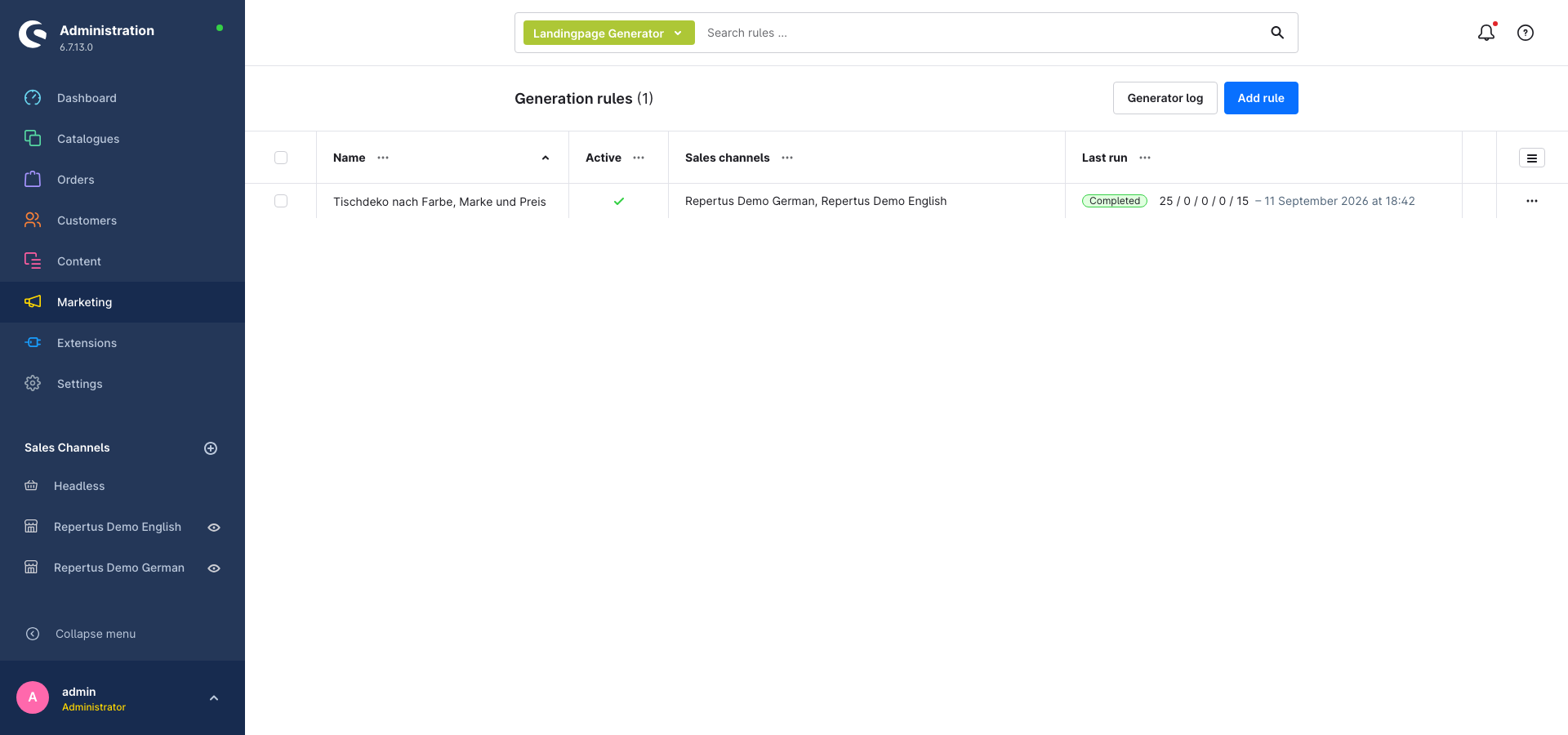
You need the active generator extension and the appropriate user permissions. Categories must provide products and the required filters in their storefront listings. Each sales channel needs a domain in the relevant language for the desired landing page URLs.
Scheduled tasks and a CLI worker must also be running for automatic and longer runs; see Automatic runs and workers.
Creating a generation rule
The detail page contains General, Layout, Facets, Patterns and Log tabs. Saving applies changes from all tabs.
1. General: define the scope
- Enter a recognisable name, such as “Tableware by colour, brand and price”.
- Select the Sales channels and Languages for the pages.
- Select the Categories. Selecting a parent also selects its existing subcategories; you can deselect individual entries. Subcategories added later are not included automatically.
- Set the Minimum number of products and Maximum number of landing pages. The defaults are 1 and 1,000 respectively.
- Adjust the page settings and layout if needed.
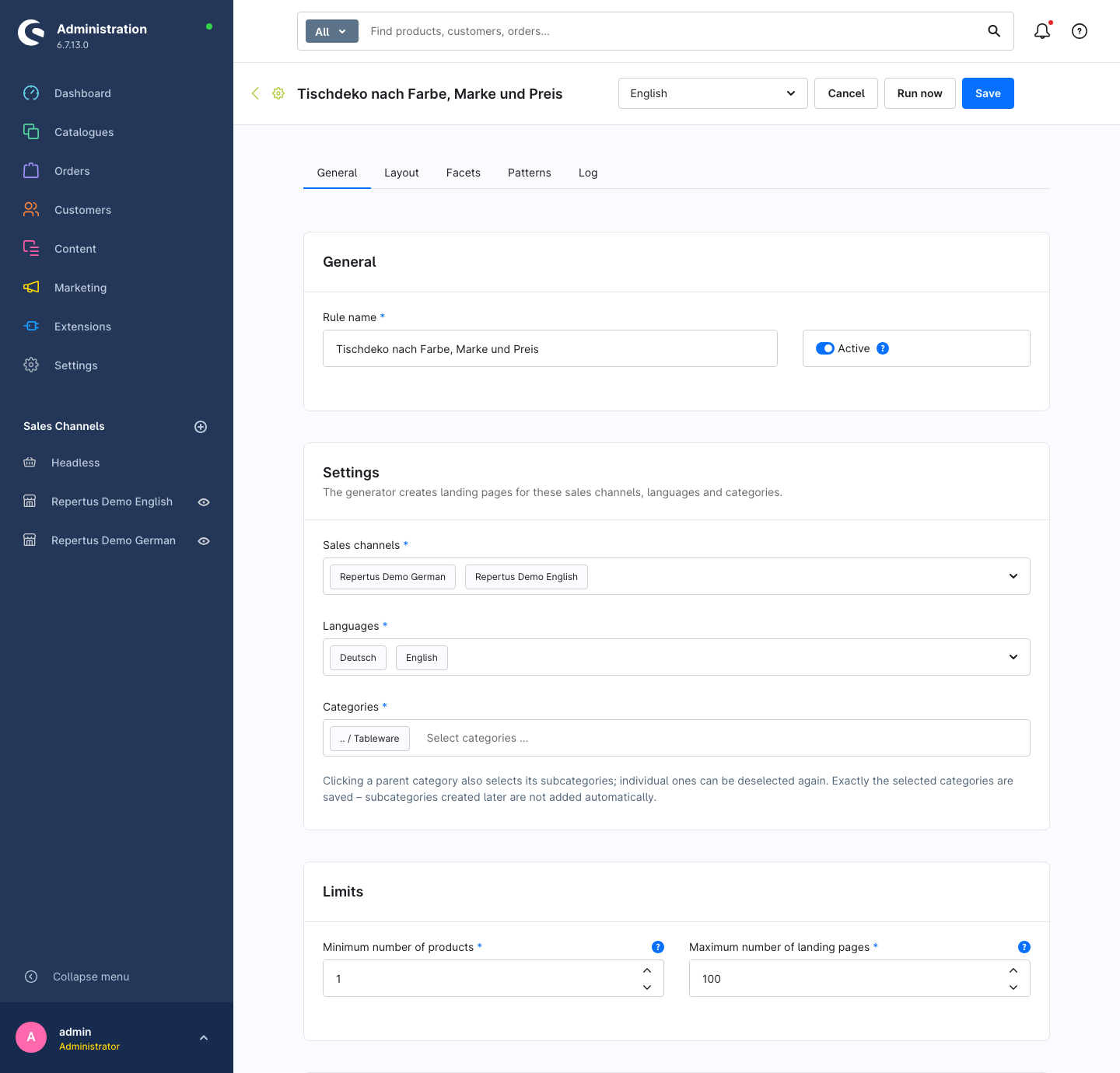
The minimum product count is checked for each combination per sales channel. If only one channel meets the threshold, the page is visible only there. The upper limit caps pages written during a run, including updates. It prevents large combinations from processing an unlimited number of pages.
An active rule requires at least one sales channel, language and category. Leave Active switched off while preparing the rule. Without facets and patterns, no pages are generated.
2. Facets: select filters and values
In the Facets tab, click Add facet, select its type and assign a Variable name. This name is used in the templates, for example {{ colour.translated.name }}.
| Type | Setup | Example |
|---|---|---|
| Property | Select a property group and its values. | Colour with Cream and Dark blue; variable colour. |
| Manufacturer | Use all available manufacturers or select individual ones. | Variable manufacturer. |
| Price range | Enter price boundaries and a translated label for each range. | Up to 30 euros and from 30 euros; variable price. |
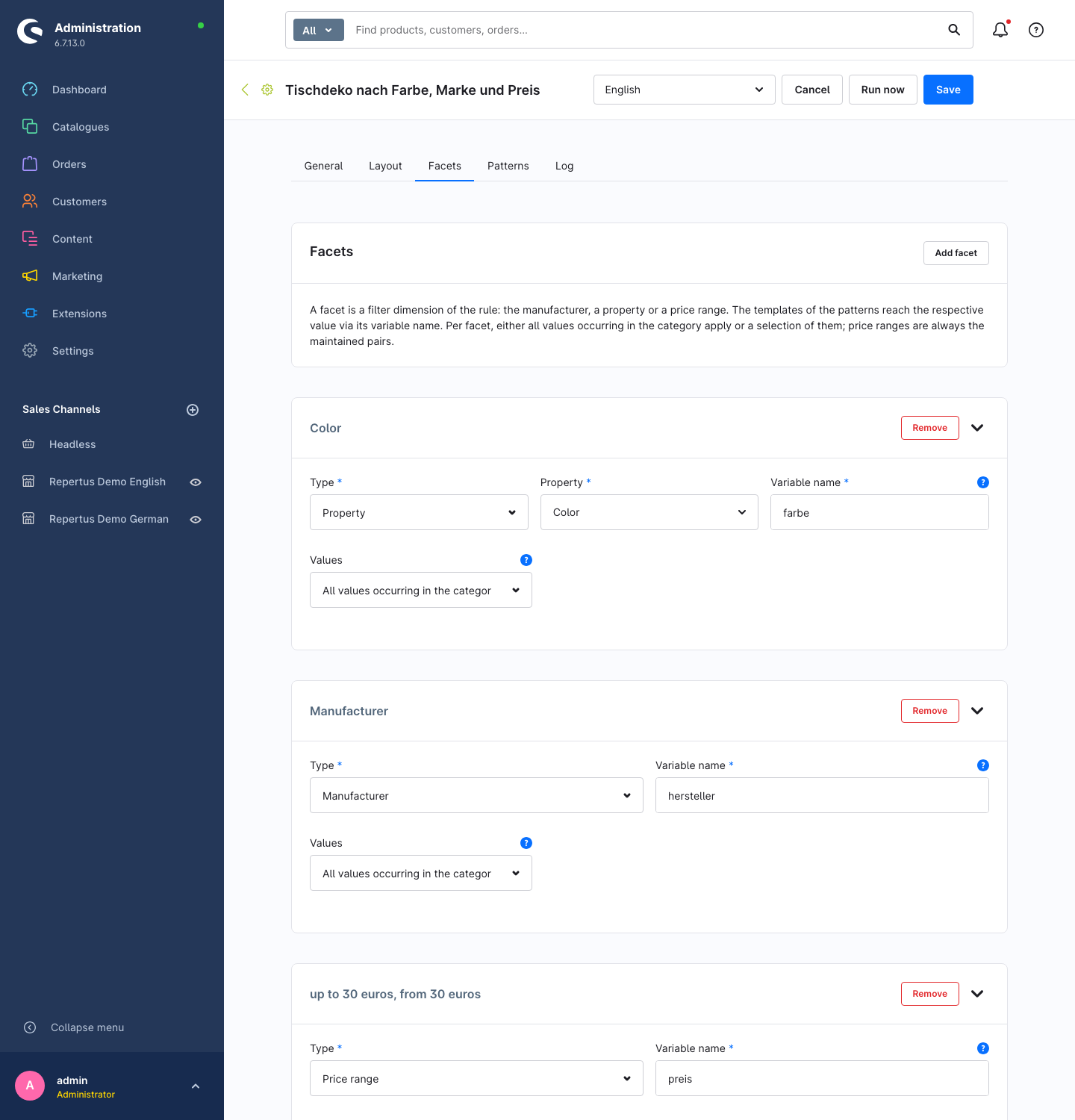
For properties and manufacturers, All values occurring in the category means that each run obtains values from the respective category listing. Selection restricts the facet to the selected values. The picker considers the rule's categories and sales channels. Previously selected values that no longer occur there remain visible and are marked. The product check during the run determines whether a page can be created.
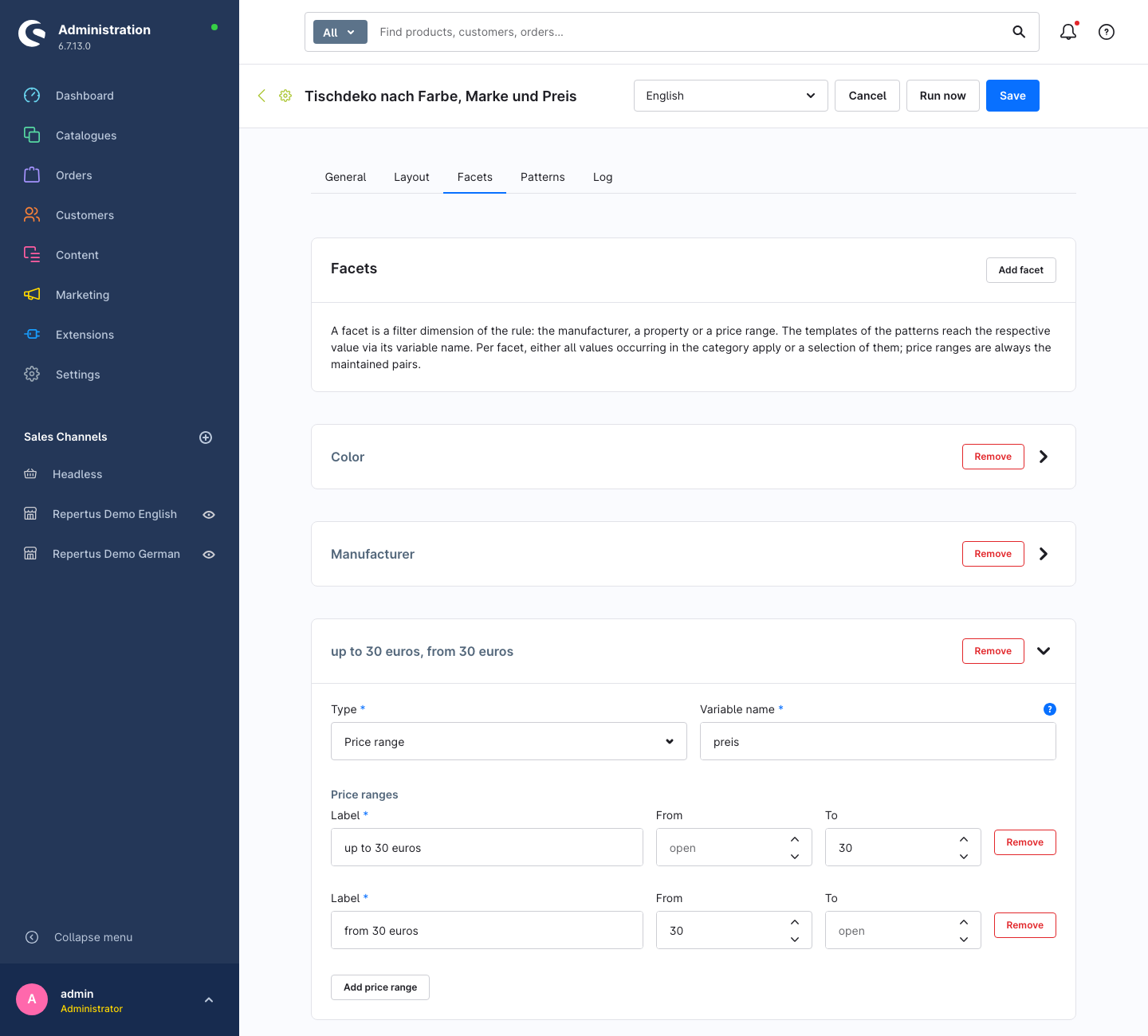
For price ranges, leave From or To empty for an open boundary. At least one boundary is required; values cannot be negative, and with two boundaries To must be greater than From. Maintain the Label separately in each language: it is used in content. The generator does not automatically format a price description. A combination pattern can use at most one price range facet.
Variable names must be unique within the rule. They may contain letters a–z or A–Z, digits and underscores, and must not start with a digit. category, categoryPath, salesChannel and language are reserved. After renaming a variable, update the affected templates as well.
The screenshots use a bilingual demo rule with the variable names farbe, hersteller and preis. Variable names are freely chosen identifiers and remain unchanged when switching the content language.
3. Patterns: define combinations and templates
In the Patterns tab, click Add pattern and select its facets. A colour pattern creates one page per colour and category. A colour-and-manufacturer pattern creates one page per colour/manufacturer combination and category, provided enough products are available.
Every pattern requires at least one facet. Two patterns in the same rule cannot use the same facet selection. Create new patterns and price ranges in the system language, then use the content language switch at the top right to enter translations.
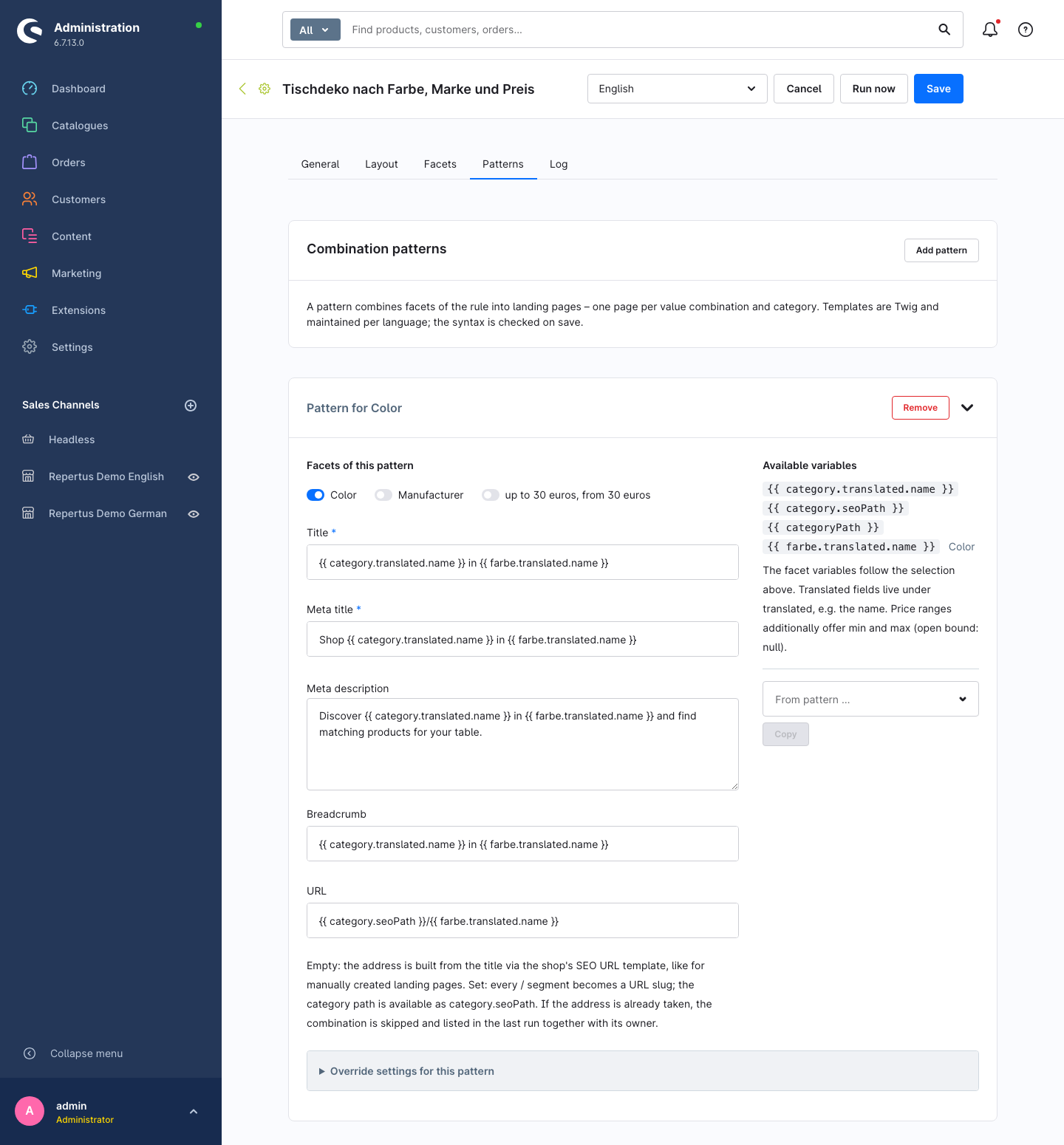
Title and Meta title are required. Meta description, Breadcrumb and URL are optional. The title can be displayed as a heading through the layout. Breadcrumb text appears when the plugin's breadcrumb extension is enabled.
First enter templates in the system language, then in all languages selected under General. Additional languages receive their own content only if the pattern has translated title and meta title templates in that language. The generator does not silently replace missing templates with the system language.
From pattern … → Copy copies another pattern's templates and page settings in all languages within the same rule. The target's facet selection stays unchanged. The copy is independent of the original pattern and takes effect when you Save. Afterwards, adjust any variables that are not available in the target pattern.
4. Save and run
Activate and save the completed rule. Use Run now for the first run and check the result in the Log tab. Subsequent runs update existing pages without recreating them every time. Template and page setting changes take effect on the next run.
Templates and variables
Templates use Twig, like Shopware's SEO URL templates. The pattern's Available variables list shows the variables for its selected facets. The examples below assume the variable names colour, manufacturer and price; use only the facets included in the respective pattern.
| Variable | Content | Example template and possible output |
|---|---|---|
category | Category with translated fields. | {{ category.translated.name }} → Tableware |
category.translated.customFields | Category custom fields. | {{ category.translated.customFields.seo_extra }} → for your home, if the custom field exists and has a value. |
category.seoPath | Canonical category path in the current sales channel and language; empty if no matching SEO URL exists yet. | {{ category.seoPath }} → home/tableware |
categoryPath | Category breadcrumb from the sales channel's entry point, joined with /. | {{ categoryPath }} → Home / Tableware |
colour | Property value of the colour facet. | {{ colour.translated.name }} → Cream |
manufacturer | Manufacturer of the manufacturer facet. | {{ manufacturer.translated.name }} → Repertus Home |
price | Price range with its translated label, min and max. | {{ price.translated.name }} → up to 30 euros |
price.min | Lower boundary as a number; an open boundary is null. | {{ price.min }} → 30 for a range from 30 euros. |
price.max | Upper boundary as a number; an open boundary is null. | {{ price.max }} → 30 for a range up to 30 euros. |
salesChannel | Sales channel in the rendering context. | {{ salesChannel.translated.name }} → Repertus Demo English |
language | Language in the rendering context. | {{ language.name }} → English |
colour, manufacturer and price are examples of freely chosen facet names. A facet named material is accessed through {{ material.translated.name }}. URLs are rendered per sales channel. Texts, however, are shared by the page's sales channels within each language; using salesChannel in a text template does not create separate content per channel.
A pattern combining colour and manufacturer could use these templates:
{{ category.translated.name }} in {{ colour.translated.name }} by {{ manufacturer.translated.name }}Use the following for the meta title, meta description, breadcrumb and URL respectively:
Shop {{ category.translated.name }} in {{ colour.translated.name }}

Discover {{ category.translated.name }} by {{ manufacturer.translated.name }} in {{ colour.translated.name }}.

{{ colour.translated.name }} · {{ manufacturer.translated.name }}

{{ category.seoPath }}/{{ manufacturer.translated.name }}/{{ colour.translated.name }}
Syntax errors appear at the affected field when saving. Unknown variables and other errors that occur only during rendering appear in the run report as template errors. In shared text templates on the rule, use only facets present in all affected patterns, or override the text on each pattern.
URL template
Without a URL template, the request URL is generated from the title using the shop's SEO URL template, just like manual landing pages. A populated URL template creates a request URL per sales channel and language. Each /-separated segment is converted into a lowercase URL slug; empty segments are removed.
For example, Home/Tableware/Repertus Home/Cream becomes home/tableware/repertus-home/cream.
If a landing page, category or product already occupies the target URL, a new combination is skipped. An existing generated page keeps its previous URL for the affected sales channel/language pair. The run report links to the owner of the occupied URL. No numeric suffix is added automatically.
Page settings
In the General tab, the SEO & Sitemap card contains the defaults for generated pages. Each pattern can change individual values through the inheritance switches under Override settings for this pattern. An empty field inherits the rule's value; if that is also empty, the default of a new landing page applies. The next run applies changed rule values to all pages without their own pattern value.
| Field | Meaning |
|---|---|
| CMS layout | Shopping Experience layout; selected in the rule's Layout tab, with an optional separate layout on the pattern. |
| Robots | Robots instruction, default follow, index. |
| Keywords | Meta keywords as a Twig template, for example {{ category.translated.name }}, {{ colour.translated.name }}. |
| Description | Twig template for the description; display it through data mapping in the layout. |
| Exclude from sitemap | Keep generated pages out of the sitemap. |
| Sitemap priority, Sitemap change frequency | Defaults: 0.5 and daily. |
| Open Graph title, description, image | Sharing data for social networks; texts are Twig templates. Empty texts fall back to meta title or meta description. |
| Use category from the sales channel navigation | The storefront uses the respective sales channel's entry category. The rule's category selection remains the basis for generation and product checks. |
Description, keywords and Open Graph texts are maintained per language. Pattern switches have three states: inherit the rule's value, own value on, own value off. An explicitly switched-off value therefore overrides a switched-on rule value.
Layout and slots
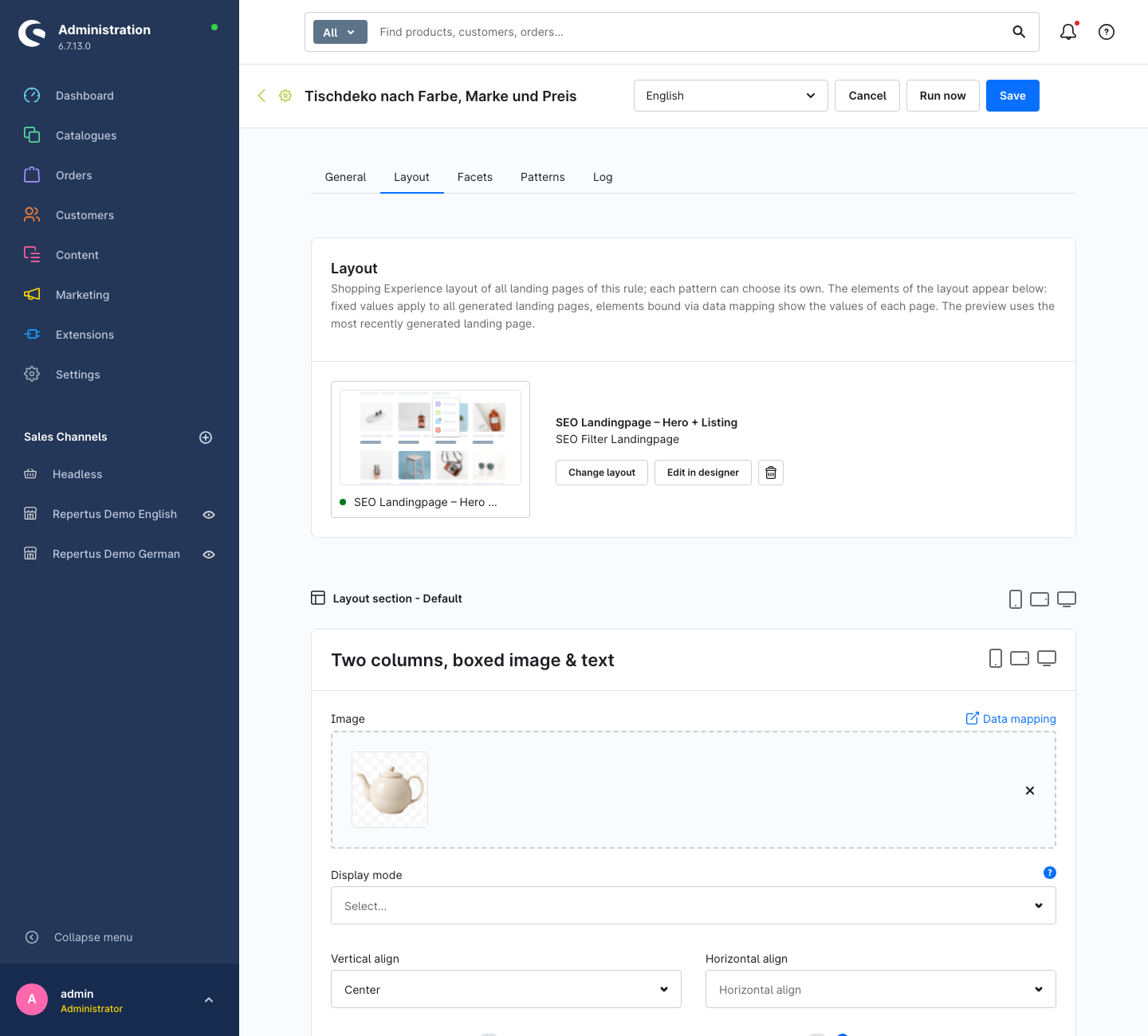
The Layout card of a rule (tab Layout) defines the Shopping Experience layout of all generated landing pages – with the same buttons as in the Layout tab of a manually created landing page: Assign layout or Change layout, Edit in designer and the trash button to remove it. Once a layout is selected, its configurable elements appear below, again as in the Layout tab.
Two kinds of values need to be distinguished:
- Fixed values – for example an SEO text written directly into a text element – apply to all landing pages of the rule alike. They suit content that should be identical on every generated page.
- Mapped values – an element bound to a field of the landing page via data mapping (title, description, Open Graph title …) – show the data of each generated page. This way every page gets its own title and its description generated from the template, even though all pages share the same layout.
The preview in the form shows the values of the most recently generated landing page of the rule. As long as the rule has not generated a page yet, the field names take their place.
Layout content is maintained per language: the language switch of the rule changes the content language, and the run writes the values of its language to every generated page.
Layout content of a pattern
Each combination pattern can override the layout content of the rule – as a whole per language, not field by field:
- As long as the pattern has no layout content of its own, its form shows the values of the rule as inherited.
- The first change creates own layout content for the pattern in the current language, starting from the values of the rule. In all other languages the values of the rule still apply.
- Reset to rule values removes the pattern's own layout content in the current language again.
If a pattern selects a layout of its own in its page settings (field CMS layout with inheritance switch), there is nothing to inherit: for that layout only the pattern's layout content applies.
Changing the layout discards the layout content
Layout content belongs to the selected layout. A different layout at the rule clears the rule's layout content in all languages – and that of all patterns using the rule's layout. A different layout at a pattern clears the pattern's own layout content. Nothing is saved until the rule is saved.
Automatic runs and workers
The scheduled task tonur_seo_filter_landingpages.generate_landingpages runs every 24 hours by default. Often referred to as the overnight run, it has no fixed clock time; the Shopware task schedule determines when it runs. It queues active rules, skipping those that already have a pending or running request.
Only one generation run executes at a time across the shop. Other runs wait in creation order. Categories are processed in sequence, and the generator log shows progress after each completed category.
Both scheduled tasks and the message queue must be processed. A hosting administrator can, for example, start these processes regularly or manage them as services:
bin/console scheduled-task:run --time-limit=60
bin/console messenger:consume async low_priority --time-limit=60
The processes must be restarted after their time limits expire. The Admin Worker depends on an open Administration session and is insufficient for reliable long runs. See the Shopware instructions for Message Queue and Scheduled Tasks for setup details.
What happens to landing pages
| Situation | Result |
|---|---|
| New combination with enough products | A landing page is created. |
| Combination already generated by this rule | The same page is updated, including content, page settings and visibility. |
| Only some sales channels meet the minimum product count | The page is assigned only to those channels. |
| No sales channel meets the minimum product count | A new combination is skipped; an existing page is deactivated and can be reactivated when enough products are available again. |
| Category removed from the rule | Its generated pages are deleted after a complete run. |
| Value or pattern removed | Pages no longer generated are cleaned up after complete processing. If their product count is below the threshold everywhere, they remain deactivated; otherwise they are deleted. |
| Same category and filters already occupied by a manual, detached or other generated landing page | The combination is skipped. The existing page is not overwritten. |
| Upper limit reached | The run ends with the corresponding status. Written pages remain; final deletion and deactivation of untouched pages are skipped. |
Deleting properties or manufacturers can change a page's filters before the next run. After such catalogue changes, check affected pages and the next run report. Detached landing pages are no longer included in the rule's cleanup.
Starting and cancelling generation runs
For external integrations, the API reference describes starting runs, handling conflicts, cancelling and reading run history.
Run now is available next to Save on a saved, active rule and in the rule list's context menu. With unsaved changes, select Save and run first. A failed save prevents the run from starting.
If the same rule already has an open run, choose from three options:
- Cancel and restart requests cancellation of that rule's open runs and queues a replacement.
- Run again after completion queues an additional run.
- Do nothing closes the dialog without a change.
If another rule is running, your new run is queued without a conflict dialog. Run all active rules in the generator log header queues a run for every active rule, skipping rules that already have an open run.
Use Cancel in a run's context menu or on its detail page to stop a request. A pending run is cancelled immediately. A running run finishes its current category, then ends once the worker has processed the cancellation. Pages already written remain. No final cleanup takes place after cancellation. Cancellation remains available without an active generator extension.
Using the console
bin/console repertus:seo-filter-landingpage:generator-run <rule-id>
bin/console repertus:seo-filter-landingpage:generator-run --all
Without additional options, requests are queued for the worker. Add --sync to process them directly in the console process:
bin/console repertus:seo-filter-landingpage:generator-run <rule-id> --syncThis also processes older pending runs. An already running worker takes precedence. If it prevents the new runs from finishing, they remain queued and the command exits with code 1.
Generator log
The Generator log button in the generation rules overview opens the history of all runs. Combine the Rule and Status filters to narrow the list. A rule's Log tab shows only that rule's runs. Click a row or its status to open the run report.
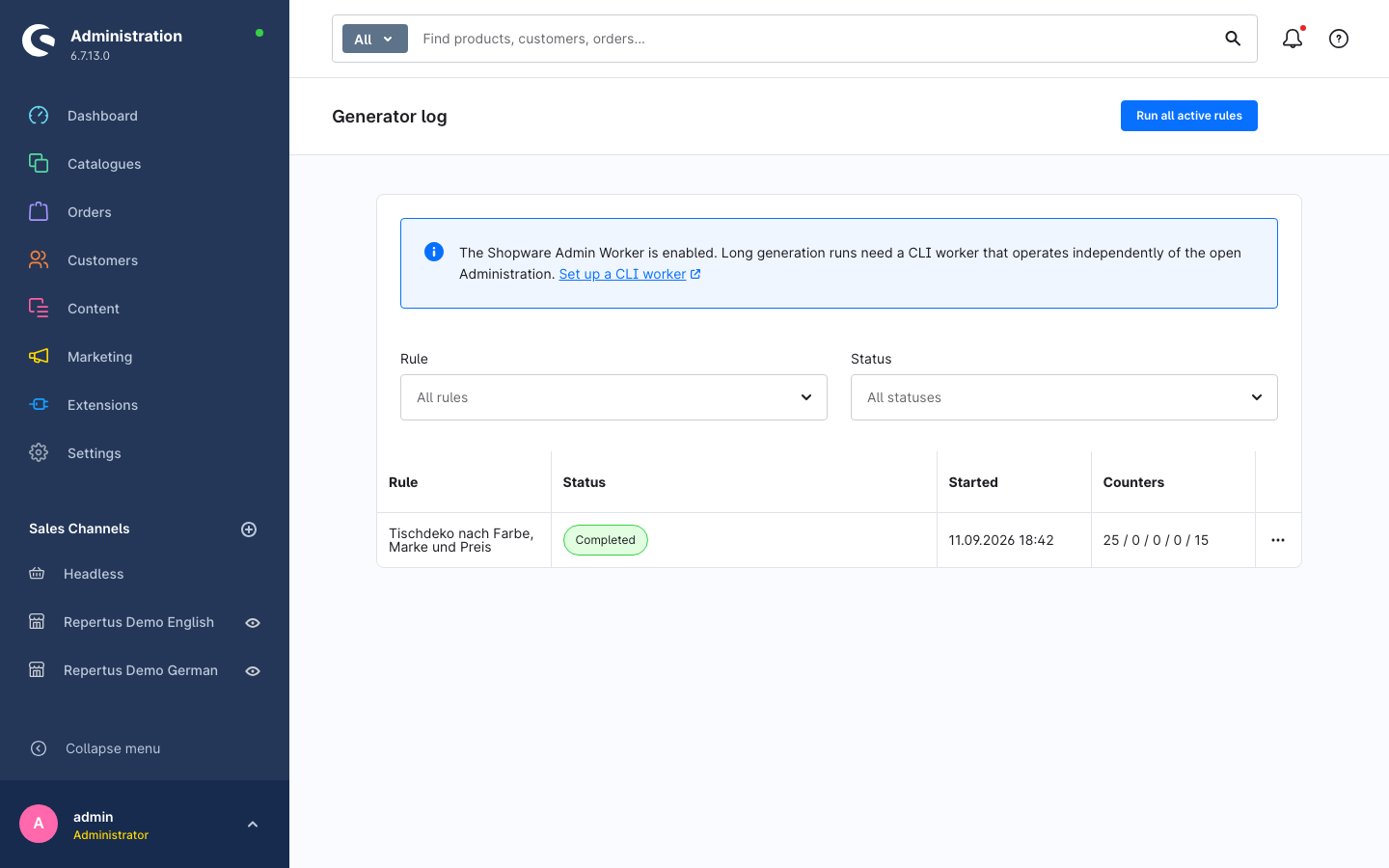
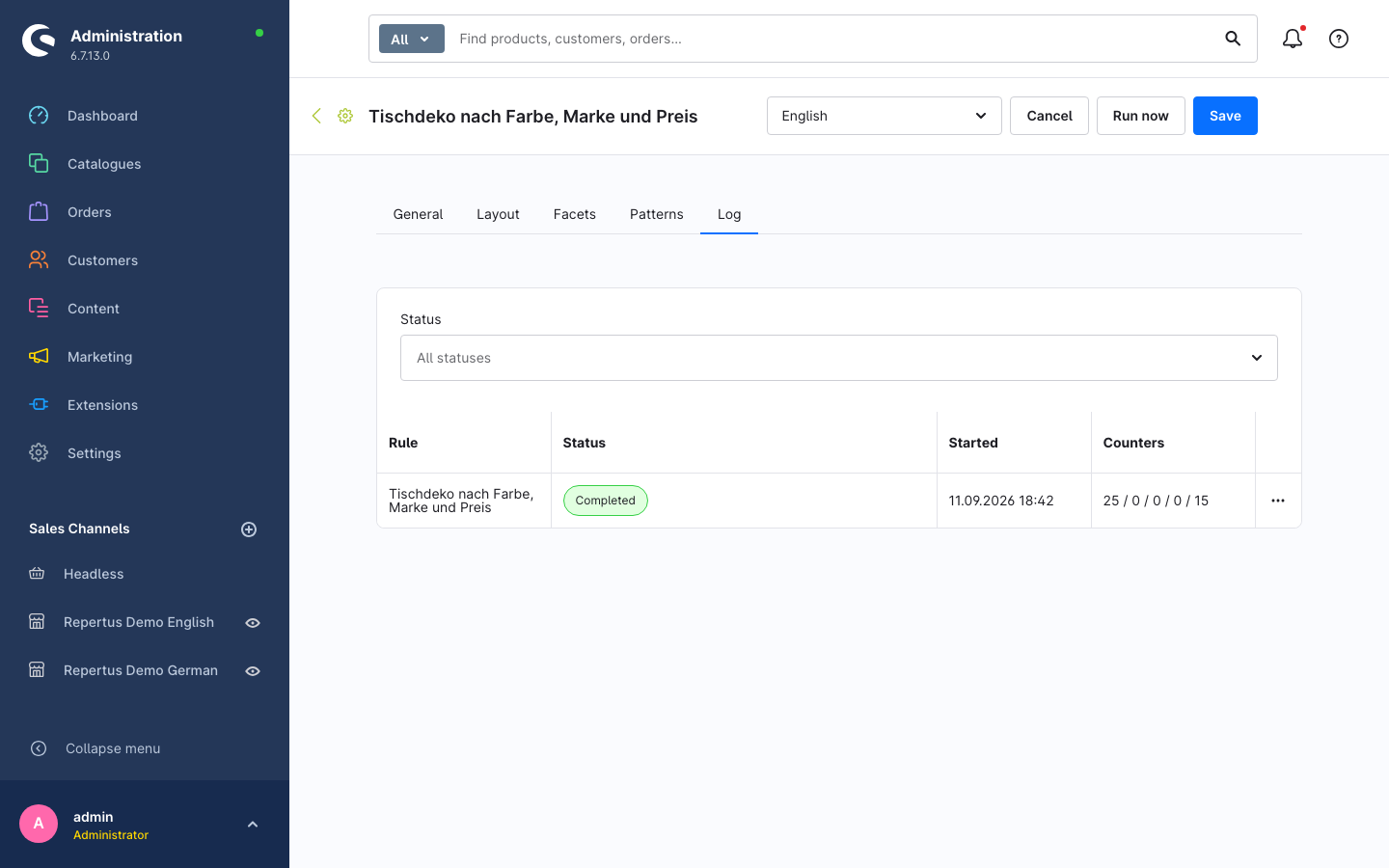
The overview, run report and rule tab refresh every five seconds while a relevant run is pending or running. Running requests show the number of processed categories. Use pagination to reach older runs.
Reading statuses and counters
| Status | Meaning |
|---|---|
| Pending | Queued; processing has not started yet. |
| Running | The worker is processing categories. |
| Completed | The run has finished. Individual combinations or patterns may still have been skipped; check the reasons. |
| Stopped at the upper limit | The configured maximum was reached. |
| Failed | An error ended the run; the run report contains the error message. |
| Cancelled | The request was cancelled, for example by a user or during cleanup of pending runs belonging to inactive rules. |
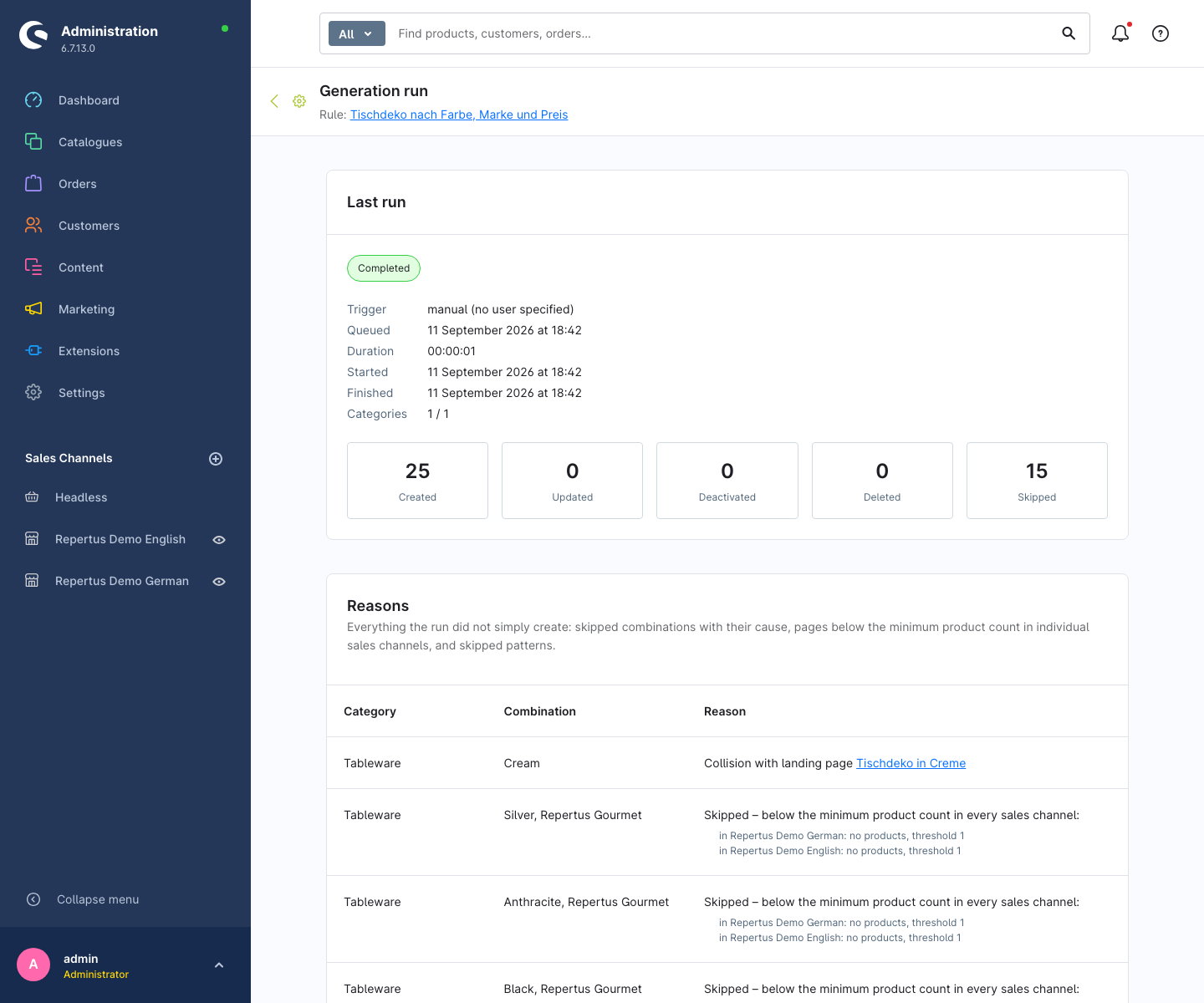
The five counters are Created / Updated / Deactivated / Deleted / Skipped. Reactivated pages count as updated. The Reasons section explains collisions, product counts below the threshold per sales channel, or template errors. Links open affected landing pages and the owners of occupied URLs.
The report also shows when the run was queued, started and finished, its duration and its trigger. Manual starts from the Administration identify the user; console runs do not specify a user. Manual cancellations record who first requested them. Runs belonging to deleted rules remain readable until cleanup.
Worker notices
If the Admin Worker is enabled, the generator log advises using a CLI worker for long runs. If a request has been pending for over five minutes while no other run is running, Message queue not running? appears. This notice is based on run states, not a direct inspection of the worker process.
The daily task cancels pending runs of inactive or deleted rules. Running requests without confirmed progress for over an hour are marked as failed. In this case, check the worker and the error message before starting again.
Notifications
Every manual run produces a Shopware notification with its rule, final status, counters and a link to the report. This includes console runs, cancellations and reached limits. Scheduled runs notify only on failure. Failed runs appear as warnings; other final statuses appear as information. Notifications are visible to users with viewer permission, even if they did not start the run themselves.
Configuring retention
Under Extensions → My extensions → SEO Filter Landingpages → Configure, the Landingpage generator card contains Keep generator log (days). Select All sales channels: the setting is global, defaults to 14 days, and accepts at least 1 day.
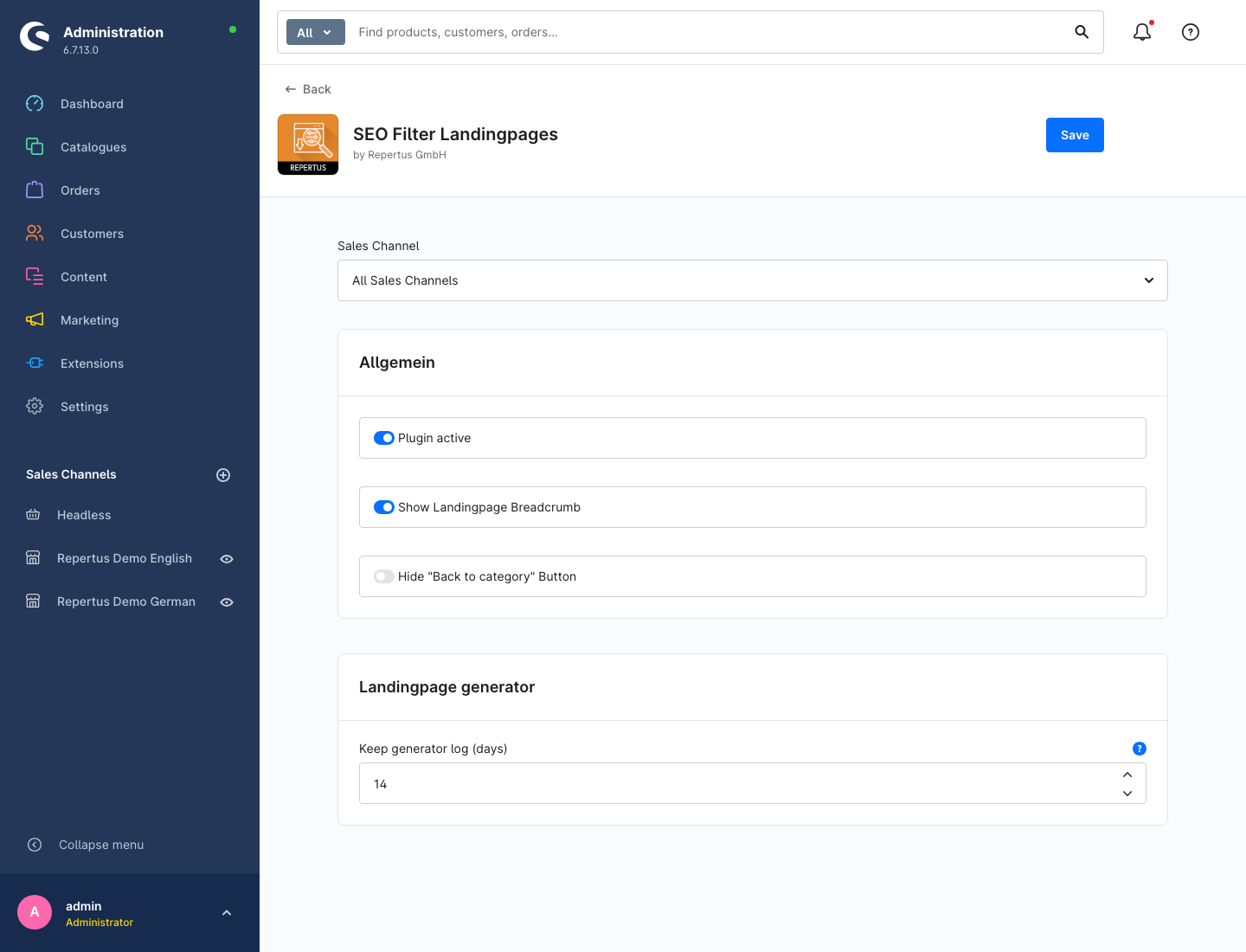
The daily task deletes finished runs whose end time is older than the retention period. The latest run of each existing rule and all open runs remain. Changes apply with the next daily task without clearing the cache. Cleanup also works without an active generator extension; runs of deleted rules receive no special retention protection.
Managing generated landing pages
Generated pages are initially hidden in the regular landing page list. Enable Show generated landingpages in the right filter sidebar to display them alongside manual pages. Their badge links to the generation rule. Use Generation rule to filter for a specific rule. On the detail page, a notice explains the write protection and links to the rule.
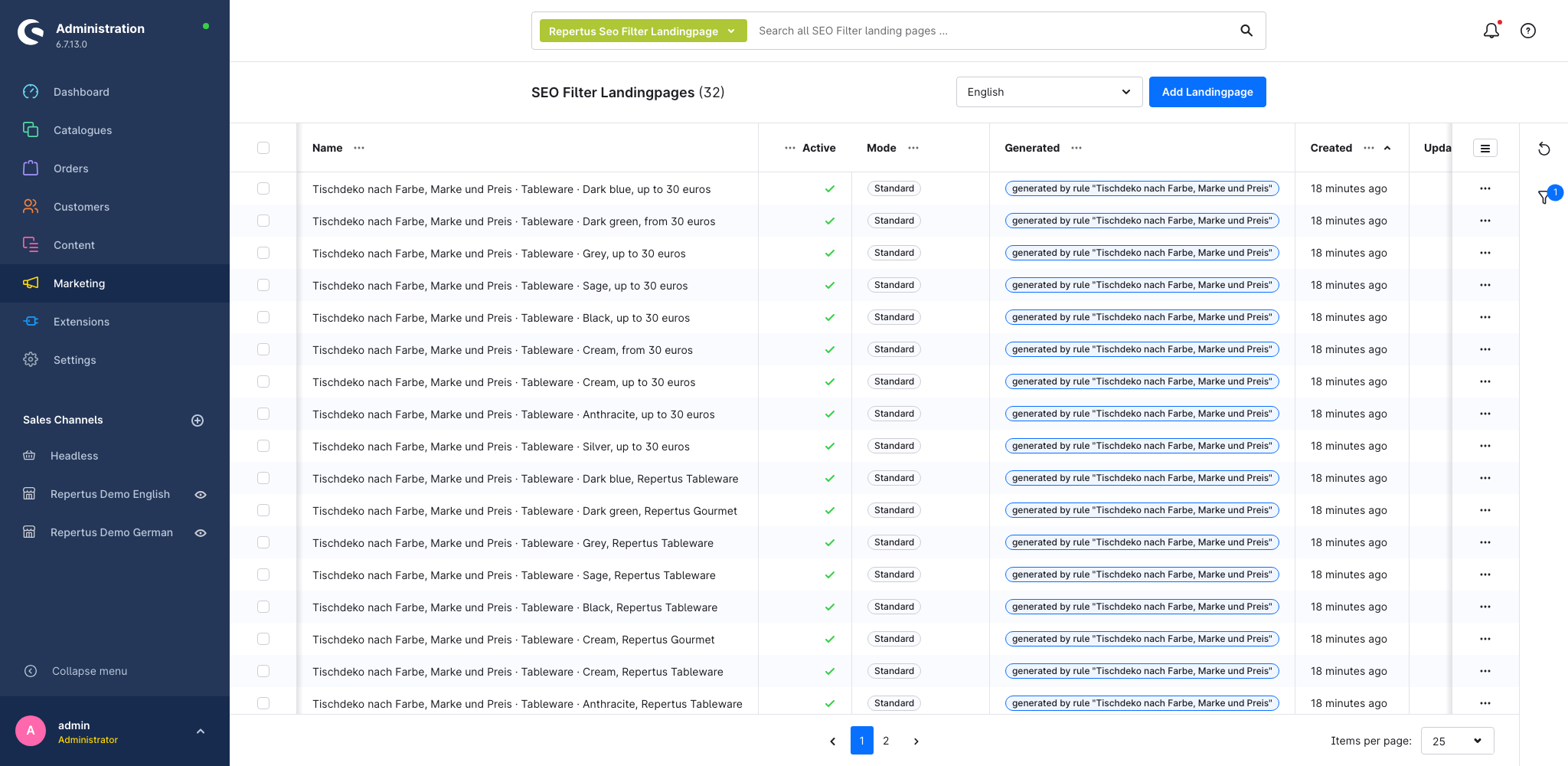
While a page belongs to its rule, edit its content, filters and page settings through the rule or pattern. In the storefront, generated pages behave like manual landing pages, with their own URL, filtered product listing and sitemap entry according to their settings.
Detaching individual pages
Select Detach on a generated landing page and confirm the dialog. The page retains its URL and content and becomes manually editable. Future runs skip its category/filter combination because it is already occupied. If you later change its category or filters, the original combination becomes available again and may be generated anew.
Simply deleting a generated page does not prevent it from being recreated: if the rule still describes the combination and enough products exist, the next run can create it again.
Deactivating or deleting a rule
Deactivating a rule pauses future starts. Its existing pages remain reachable and unchanged. Cancel an already running request separately in the generator log if needed.
When deleting a rule, choose:
- Keep pages: all associated pages are detached and become manually editable.
- Delete pages: the rule and its generated landing pages are deleted.
The run history remains initially and is subsequently subject to the configured retention period.
When the extension expires
Without an active generator extension, the entry point and existing rules remain visible. Rules become read-only, and no new runs are started. Already generated landing pages remain unchanged and reachable in the storefront. You can still detach or delete them, read the run history and cancel open runs.
After reactivation, you can edit and run rules again. The Per sales channel configuration IAP does not unlock the generator; the two extensions are purchased separately.