
Installation and settings
Installation
Via the Shopware Store
- Purchase the extension in the store and download it in the admin under Extensions → My extensions.
- Install, then Activate.
Via the console
Extract the plugin archive into custom/plugins/ or require it via Composer (tonur/packstation), then:
bin/console plugin:refresh
bin/console plugin:install --activate TonurPackstation6
bin/console theme:compile
bin/console cache:clear
Installation automatically:
- creates the table
repertus_packstationfor the Packstation data of customer addresses - adds the custom field set Packstation with the switch Delivery to packstation is possible to products, see Cart validation
Updating from an older version
Since version 3.2 the plugin checks product dimensions and weight. To keep existing shops from suddenly blocking orders after the update, the setting Block products with missing measurements is switched off during the update. New installations start with it on.
Uninstallation
When uninstalling, Shopware asks whether to keep the data. Without that option the plugin removes the table repertus_packstation, the custom field set and its configuration. Customer addresses are kept, because the Packstation data lives in the standard fields (street, additional address line).
Plugin settings
Found under Extensions → My extensions → Packstation → … → Configure. All settings apply per sales channel if one is selected at the top; exceptions are marked.
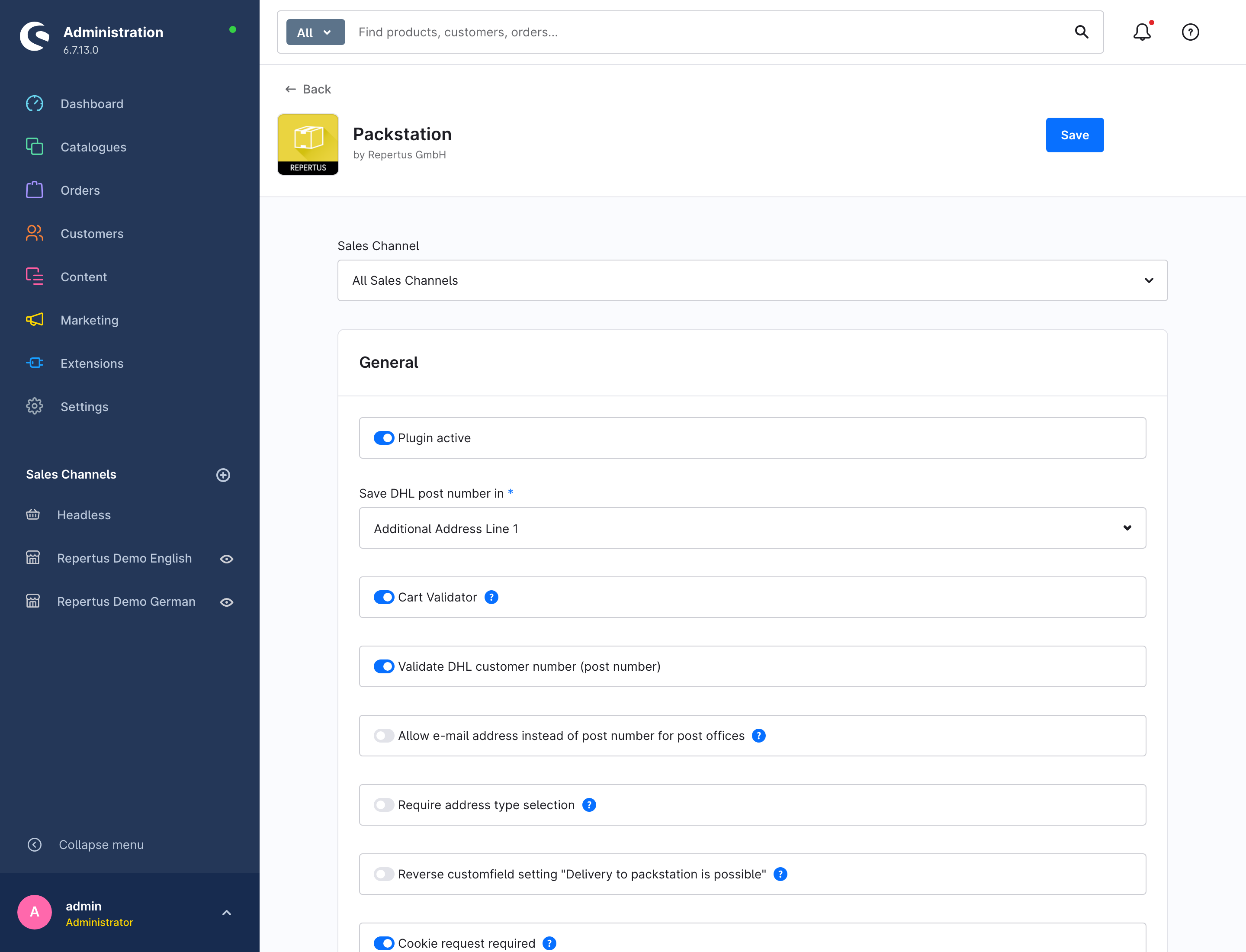
General
| Setting | Default | Effect |
|---|---|---|
| Plugin active | on | Enables the plugin for the sales channel. When off, the shop behaves as if the plugin were not installed. |
| Save DHL post number in | Additional address line 1 | Address field the post number (or e-mail address for post offices) is written to: Additional address line 1, Additional address line 2 or Company. The field must be visible in Shopware, see Address fields. |
| Cart validator | on | Validates the cart when a Packstation/post office is the shipping address: excluded products, dimensions and weight, missing post number, Packstation as billing address. On errors the order cannot be completed. |
| Validate DHL customer number (post number) | on | The post number must consist of 6 to 12 digits. Off: any input is accepted. |
| Allow e-mail address instead of post number for post offices | off | Customers without a post number can identify themselves at a post office with their e-mail address. The form shows a switch for this. Packstations still require a post number. |
| Require address type selection | off | New address forms have no address type preselected; the address fields stay hidden until the customer picks Post address or Packstation/Post office. Useful when many customers order to Packstations and should not miss the choice. |
| Reverse custom field setting "Delivery to packstation is possible" (global) | off | Inverts the meaning of the product custom field: it becomes Delivery to packstation is not possible. Useful when most products may go to Packstations and only a few should be excluded. Details under Excluding products. |
| Cookie request required | on | The map search is only available after consent in the cookie banner. See Cookie consent. |
| Consent provider | Auto detect | Which consent system is used for the check: Shopware, consentmanager.net, Cookiebot or Usercentrics. |
| Consent target type, Consent target key | Purpose, packstation-map-osm | Which purpose / category / service in the consent system unlocks the map search. See Cookie consent. |
| Show zip code and city in one field | on | The search has a single field for zip code and city. Off: two separate fields. |
| Debug (global) | off | Writes additional information to the log file var/log/tonur_packstation6_<env>.log, see Troubleshooting. |
Packstation limits
| Setting | Default | Effect |
|---|---|---|
| Validate dimensions and weight | on | Compares length, width and height of each product and the total cart weight with the DHL limits for Packstation or post office. Requires the Cart validator. |
| Block products with missing measurements | on (new) / off (update) | Products without complete dimensions and weight may not be shipped to pickup locations. Off: such products are skipped by the dimension check. |
The limits are fixed, see Dimensions and weight.
DHL API settings
| Setting | Default | Effect |
|---|---|---|
| Sandbox | off | Uses the DHL sandbox server instead of the production server. For testing only; the sandbox returns test data. |
| DHL API Key | empty | Your own key for the DHL Location Finder – Unified API. Empty: the plugin uses a key provided by Repertus that is shared by all installations. |
| Test API key | Checks the connection with the entered key. | |
| Limit | 30 | Maximum number of locations per search, at most 50. |
| Location types to include | All | Search only Packstations, only post offices or both. |
| Validate Packstation / post office number via DHL API | off | When the address is saved and before checkout, the plugin checks whether the number exists at the given zip code and matches the selected type. See Location check. |
Your own DHL API key
The free DHL quota is 500 calls per day and key. Shops with many customers or with the location check enabled should create their own key: register at developer.dhl.com, create an app and add the Location Finder – Unified API. The app's Consumer Key is the API key.
Map settings
| Setting | Default | Effect |
|---|---|---|
| Map type | Open Street Map | Map provider for the search. OpenStreetMap needs no key. Bing Maps is no longer offered by Microsoft and is only listed for existing installations. |
| API key for map provider, Test API key | empty | Only relevant for Bing Maps. |
| Test mode | on | Only relevant for Bing Maps: shows an overlay while the Repertus test key is used. |
| Color packstation, Color post office | empty | Pin color on the map per location type. Empty: default color. |
| Color packstation icon, Color post office icon | empty | Color of the symbol inside the pin (OpenStreetMap). |
| Show pin legend | off | Shows a legend with the chosen colors above the map. Only useful when colors are set. |
Address fields
The plugin writes the post number into a standard address field. That field must be enabled in Shopware, otherwise it is not submitted when saving:
- Additional address line 1 / 2: enable Show additional address field 1 / 2 under Settings → Shop → Login / registration. Customers do not see the field for Packstation addresses; the plugin fills it in the background.
- Company: the company field is always available. For Packstation addresses the plugin then hides department and VAT ID. Choose this option only if your ERP expects the post number in the company field (this is how the Shopware 5 version of the plugin stores it).
Customizing texts
All labels and error messages are snippets (Settings → Shop → Snippets) with the prefix tonur.packstation; error messages live under checkout.tonur.packstation and error.tonur.packstation. The cookie entry is under cookie.tonur.packstation.
Do not change the street labels
The snippets tonur.packstation.street_values.packstation ("Packstation") and …street_values.post_office ("Post office") form the street entry and are also used by the plugin to recognize Packstation addresses. If you change them, do it before going live: existing addresses with the old text would no longer be recognized as Packstation addresses.