
Address form and search
Where the choice appears
The switch Post address / Packstation/Post office is part of every form for a shipping address:
- Registration, once The shipping address differs from the billing address is checked
- Customer account → Addresses → create or edit an address
- Checkout → change address (address manager), shipping address tab
Forms for the billing address do not have the switch: a Packstation cannot be a billing address. This also applies to the default billing address and the billing address currently selected in checkout; they cannot be converted into a Packstation while they serve as billing address.
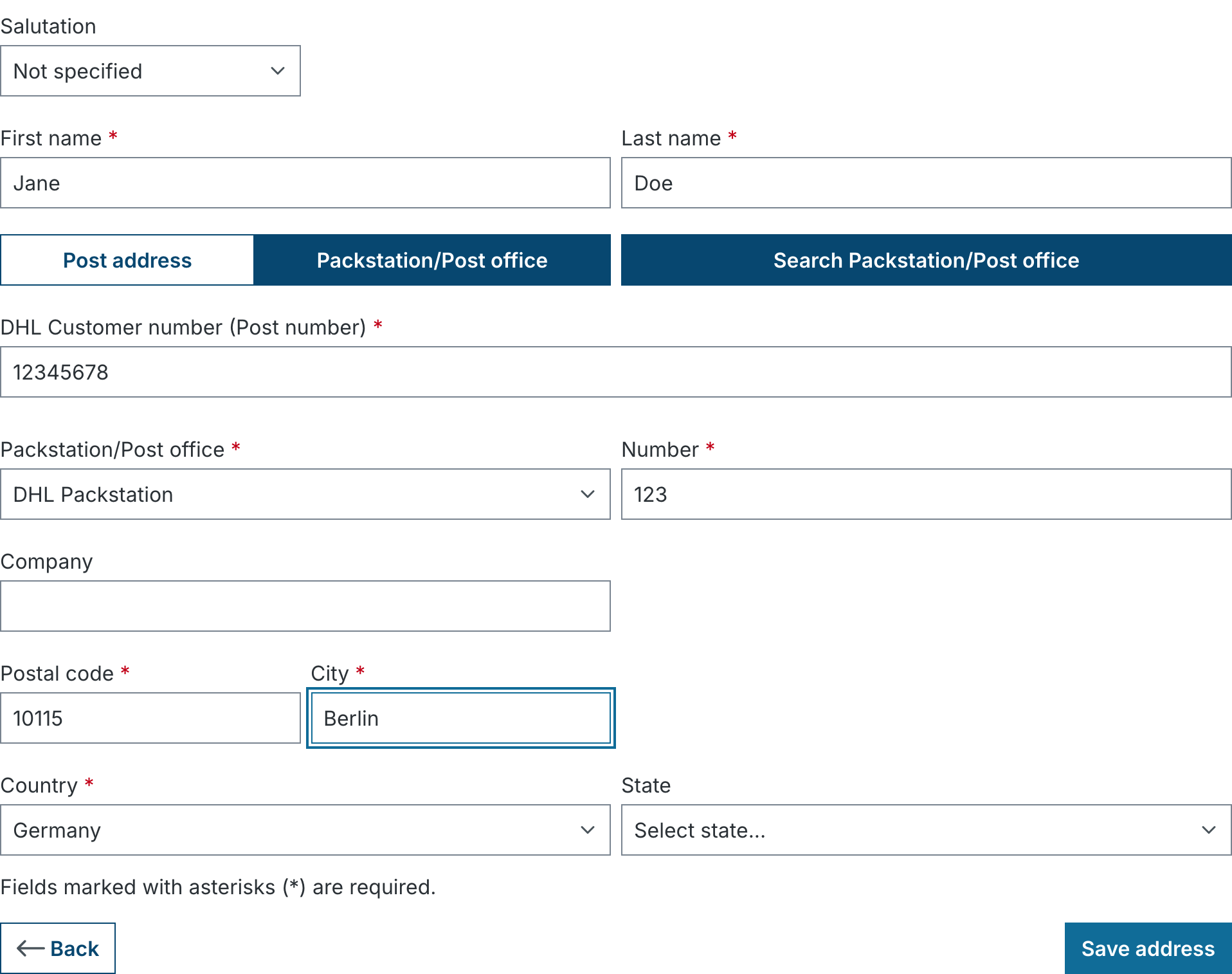
Entering a Packstation address
When the customer selects Packstation/Post office, street, department and VAT ID disappear and these fields appear instead:
| Field | Meaning |
|---|---|
| DHL Packstation / Post office | Type of pickup location. |
| Number | Number of the Packstation or post office, e.g. 123. |
| DHL customer number (post number) | 6 to 12 digits. For post offices with the e-mail option enabled, a switch Use post number / Use e-mail address replaces this field; the e-mail is prefilled with the customer's e-mail. |
| Zip code, City | Stay visible and are filled automatically by the search. |
| Country | Set to Germany automatically. Switching back to post address restores the previously selected country. |
First name, last name, salutation and all other fields stay as they are.
If Require address type selection is enabled, a new form initially shows only the switch with the note Please choose an address type first; the save button is disabled until a choice is made. Existing addresses are not affected.
Map search
The button Search Packstation/Post office opens a dialog with a search field and a map.
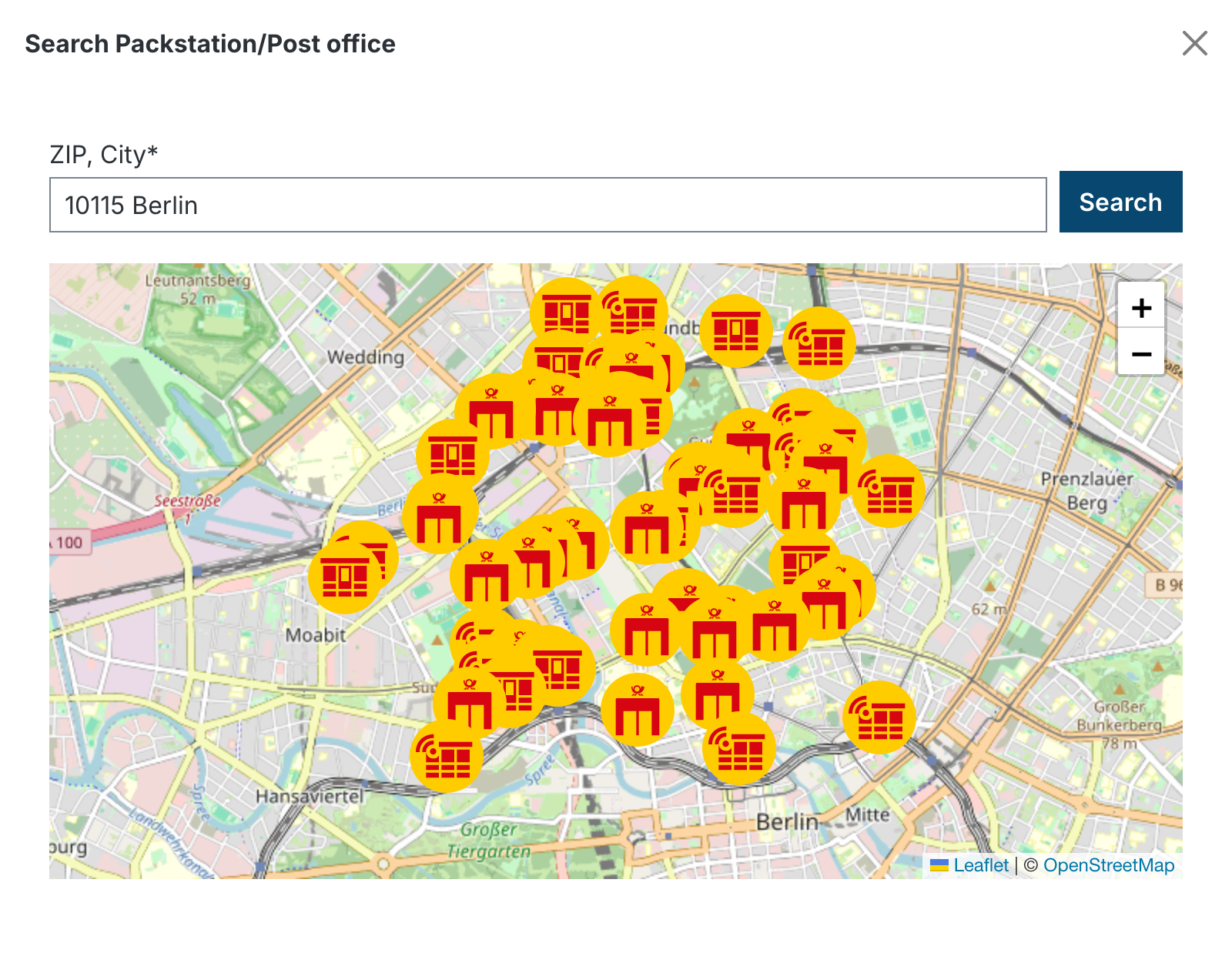
- Enter zip code and/or city (one combined field or two separate fields, depending on the setting) and click Search. Zip code and city from the address form are prefilled.
- Results come from the DHL Location Finder API within a 5 km radius, limited to the configured limit and location type, and appear as pins on the map (Packstations and post offices with different symbols).
- Clicking a pin opens a popup with type and number, address, today's opening hours and, for Packstations without a screen, the note Can only be operated via app. Use as shipping address writes type, number, zip code and city into the form and closes the search. The customer has to add the post number themselves.
As long as the customer has not consented to the map search in the cookie banner, the button is disabled and a note Please enable the map search in comfort features with a link to the cookie settings is shown below it. Details under Cookie consent.
What gets stored
From the input the plugin builds an address in Shopware's standard fields:
| Field | Post address | Packstation | Post office |
|---|---|---|---|
| Street | Sample Street 1 | Packstation 123 | Post office 456 |
| Additional address line 1 (or the configured field) | empty / input | post number | post number or e-mail address |
| Country | any | Germany | Germany |
Orders, invoices, delivery notes and the ERP therefore receive an address DHL can deliver to directly. In addition the plugin records in its own table that the address is a Packstation.
Existing addresses
Addresses created before the installation whose street already starts with "Packstation" or "Post office" are recognized as Packstation addresses when first loaded; number and post number are taken from the address fields.
Post number check
With Validate DHL customer number (post number) enabled, the post number must consist of 6 to 12 digits. Anything else is rejected on save with The DHL customer number may only contain numbers. A missing post number is caught at checkout at the latest, see Cart validation.
Checking the number via the DHL API
With Validate Packstation / post office number via DHL API the plugin asks DHL on save whether a pickup location with this number exists at the entered zip code and whether the type matches. Possible messages:
- No Packstation/post office with this number was found at the given postal code. – number or zip code wrong.
- The entered number does not match the selected type. – e.g. Packstation selected, but the number belongs to a post office.
The same check runs before order completion for the active shipping address, so imported or older addresses are covered too. Results are cached for 7 days (numbers not found for 1 hour) so that cart calculations do not trigger an API call every time. If DHL is unreachable, the check does not block.
Customer account and address manager
- In the address overview Packstation addresses carry the badge Only as shipping address. The action Use as default billing address is missing for them.
- In the checkout address manager Packstation addresses cannot be selected in the billing address tab.
- If the current cart does not fit a pickup location (dimensions, weight, excluded products), the address card shows Not available for this cart, see Cart validation.
Compatibility
- ACRIS Separate Street & House Number: the plugin fills street and house number separately; the switch stays visible.
- One-page checkouts and themes that use the standard address form (
address-form.html.twig) get the switch automatically. Heavily customized forms have to include the fieldsetstorefront/component/packstation/packstation-fieldset.html.twigthemselves.